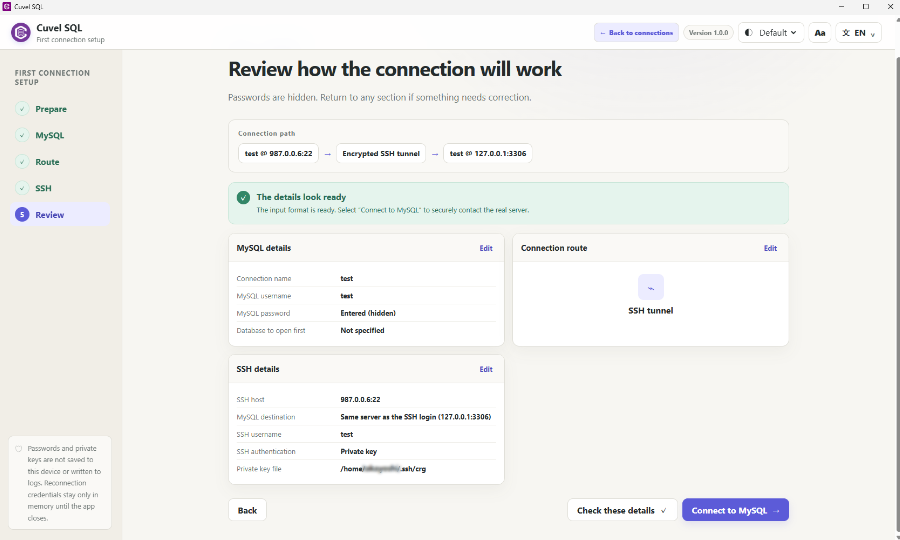
SSH and TLS have different roles
A direct connection goes from your PC to the database server. TLS encrypts database traffic and uses certificates to verify the destination. Sometimes called SSL, it is described here as TLS. An SSH tunnel encrypts the route from your PC to the SSH server. SSH alone does not necessarily protect the onward connection to a separate database server.
Prepare database and SSH details separately
Obtain the database type, host, port, username and password. PostgreSQL also needs a database name. For SSH, separately obtain the SSH host, port, username and password or private key. Standard ports are 22 for SSH, 3306 for MySQL-compatible databases and 5432 for PostgreSQL; use the values supplied by your administrator or service.
Connect directly to a remote database with TLS
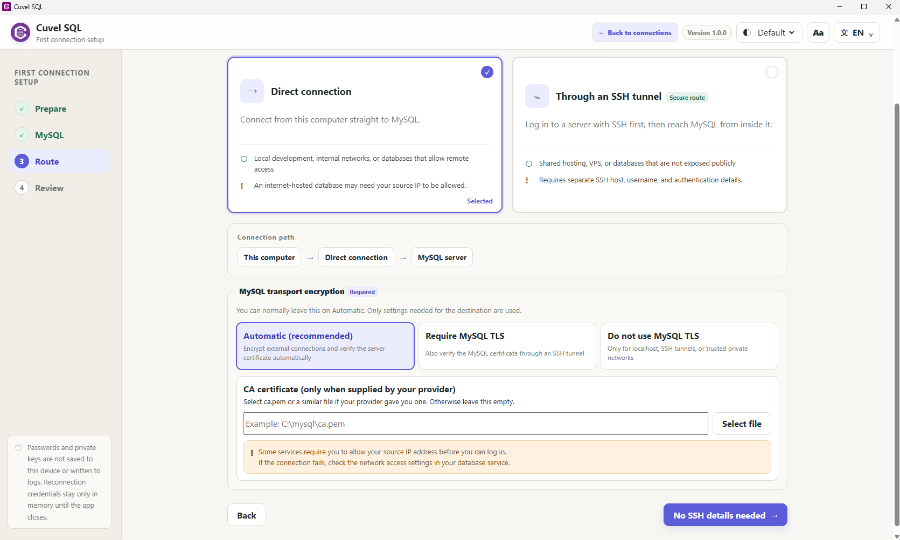
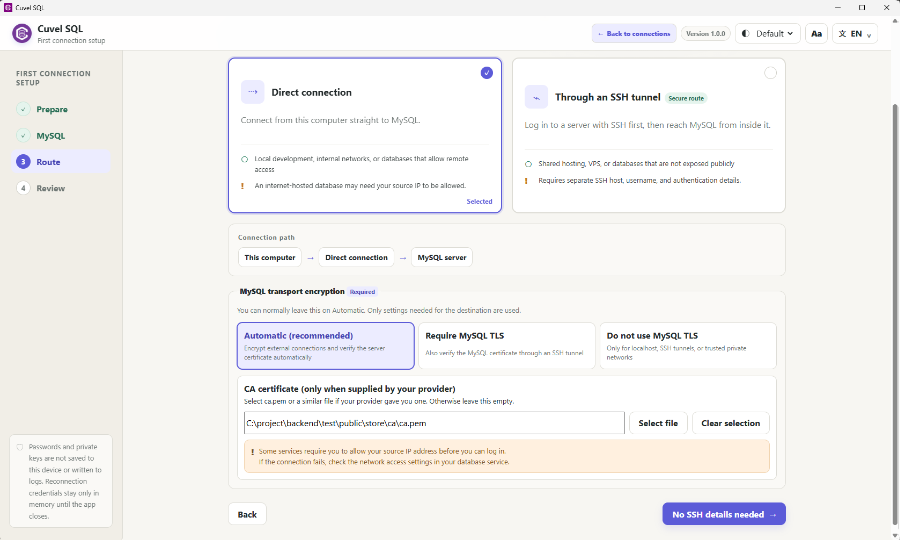
Enter database details in the wizard and select Direct connection. Encryption settings appear for direct connections to remote hosts. Automatic uses TLS for remote direct connections. If your service requires TLS, select Require TLS and choose the CA file when supplied. Use the exact service hostname; do not replace it with an IP address that does not match the certificate. Review the destination before connecting.
Connect through an SSH tunnel
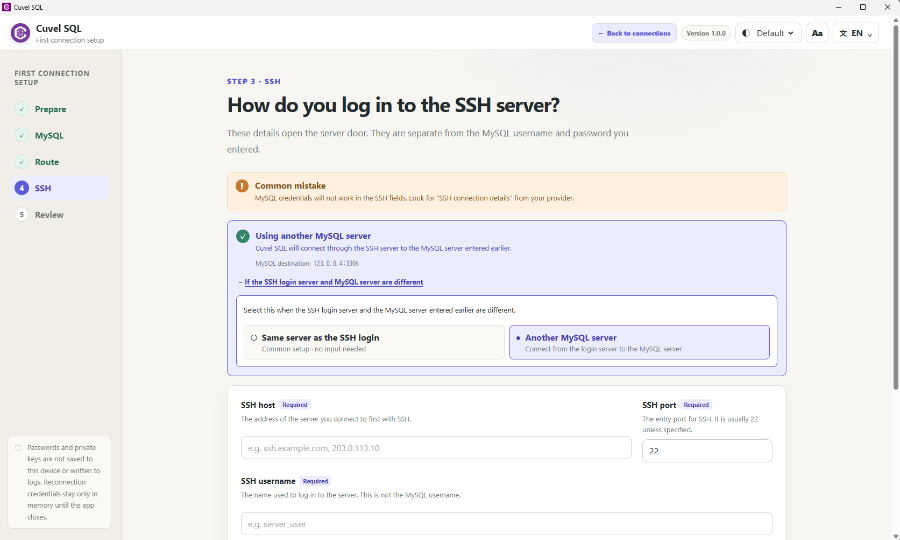
Select Through an SSH tunnel and enter SSH details on the next screen. Database and SSH users are separate. Use the standard setting when the database runs on the SSH server. If it is on another server, open the alternate-server settings and enter a database host and port reachable from the SSH server. In a direct connection, 127.0.0.1 means your PC; as the database destination inside SSH, it means the SSH server. The TLS controls are not displayed for SSH or local direct connections. If the onward connection to a separate database requires TLS, verify that the current interface can configure it before proceeding.
Do not confuse CA certificates and private keys
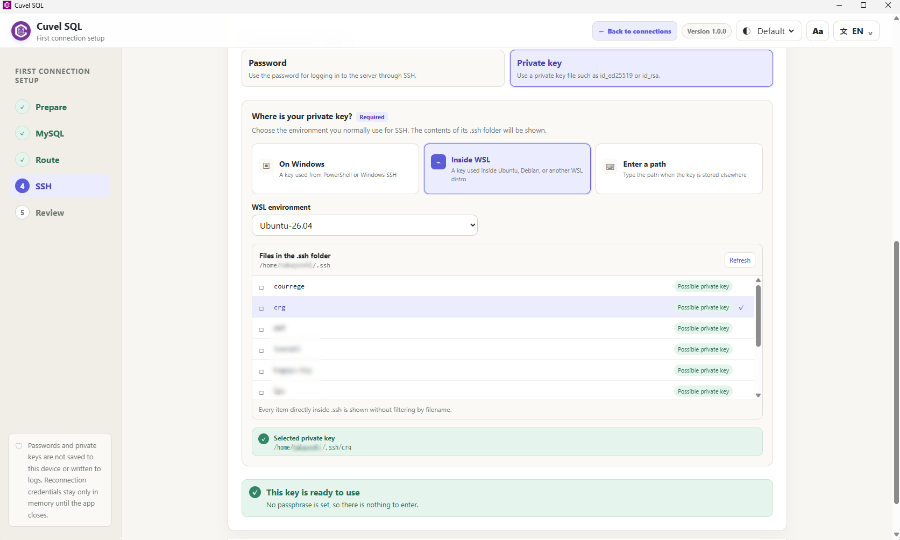
A CA certificate, such as ca.pem, verifies the database server certificate. Obtain it from your service, save it on your PC and select it in the CA certificate field. Do not enter its download URL as a file path. An SSH private key authenticates your SSH login. Select its actual location using Windows, WSL or manual path entry; choose the private key, not the public .pub file. Enter its passphrase if required. A CA certificate alone does not grant database access.
First-time checks and connection errors
Verify a first-time SSH host key against the fingerprint or information from your administrator. Read certificate warnings and confirm the destination. If a previously used key or certificate changes, ask whether an update was expected. For timeouts or refused connections, check host, port, source-IP restrictions and firewalls. For authentication errors, check the separate database and SSH credentials. For certificate errors, check the CA file, expiry, PC clock and hostname. Do not disable TLS or certificate checks just to clear an error.
After connecting, verify the database
Select the database/schema and table to inspect the data. A working SSH login does not guarantee database authentication or permissions. Start with only the permissions needed to view data, then decide whether to save the connection and password. See Your first connection for the complete introductory workflow.