
Check the table and record list
Select a database/schema and table on the left, then open Browse. Confirm the connection and table name before acting. Choose a sort column and ASC or DESC; clicking a column name also changes the order. Column headers stay at the top while scrolling vertically, and horizontal scrolling is available without going to the bottom of the list.
Search with conditions
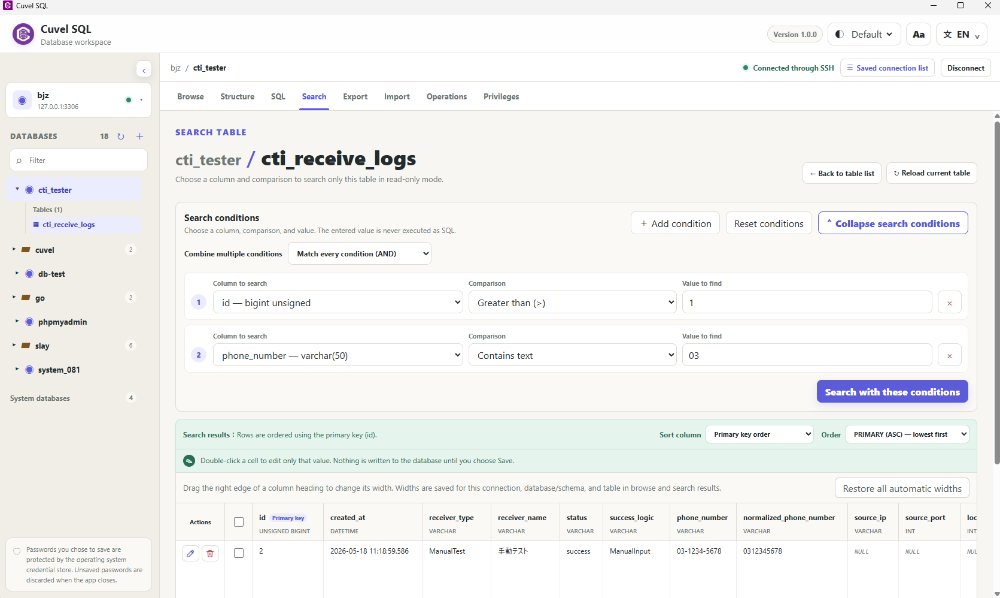
Open Search, choose a column, comparison and value, then run the search. For example, use Contains with sample in the name column to find matching text. Combine conditions with all (AND) or any (OR). NULL differs from an empty string; use Is NULL for it. Searching itself does not change records.
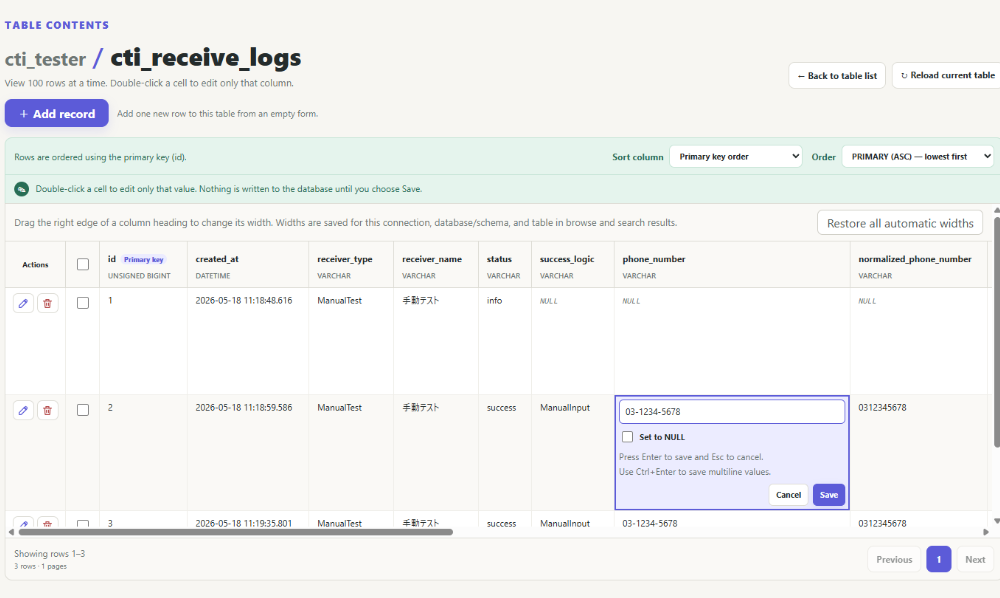
Edit a cell, review and save
Double-click an editable cell in Browse or search results, enter a value and choose Save. You can cancel before saving. Saving writes to the database, so check the row and change first. Editing is restricted when a row cannot be identified safely, such as without a primary key, or when the type or column is not editable. Read error details for permission or constraint failures.
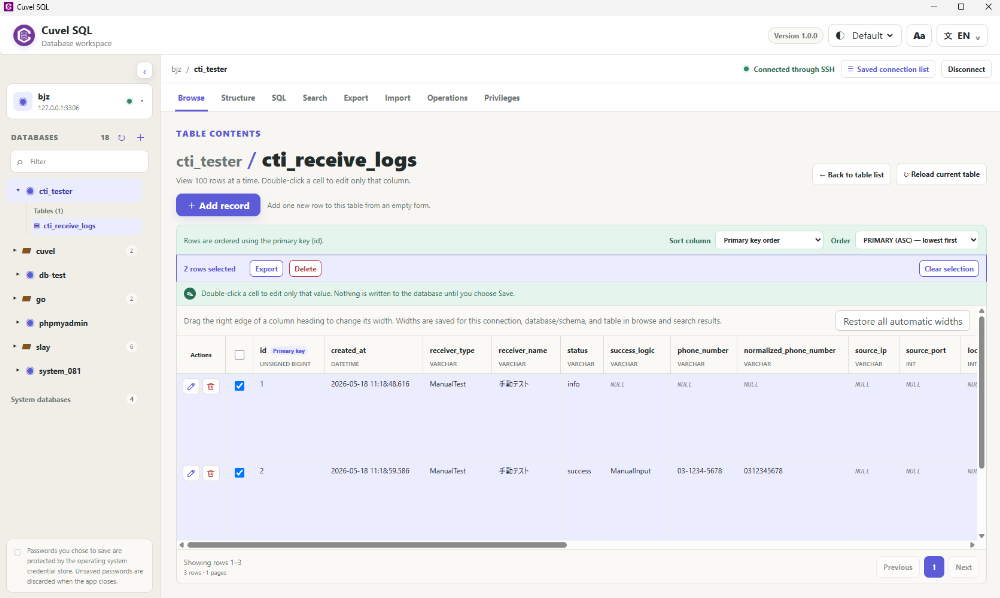
Check only the rows you need
Row checkboxes show a selected count with Export and Delete buttons. The header checkbox selects rows on the current page, not every search result. Use Clear selection to remove checks. Deletion requires confirmation of the target and count. If deletion stops partway through, rows already deleted are not restored.
Choose the export rows and columns
Use Export beside the selected count or in the top menu. Choose all records, current search results or checked records, and verify the displayed count. All records means the entire table, not just the visible page. Run a search before choosing search results; check rows before choosing checked records. You can exclude unwanted columns.
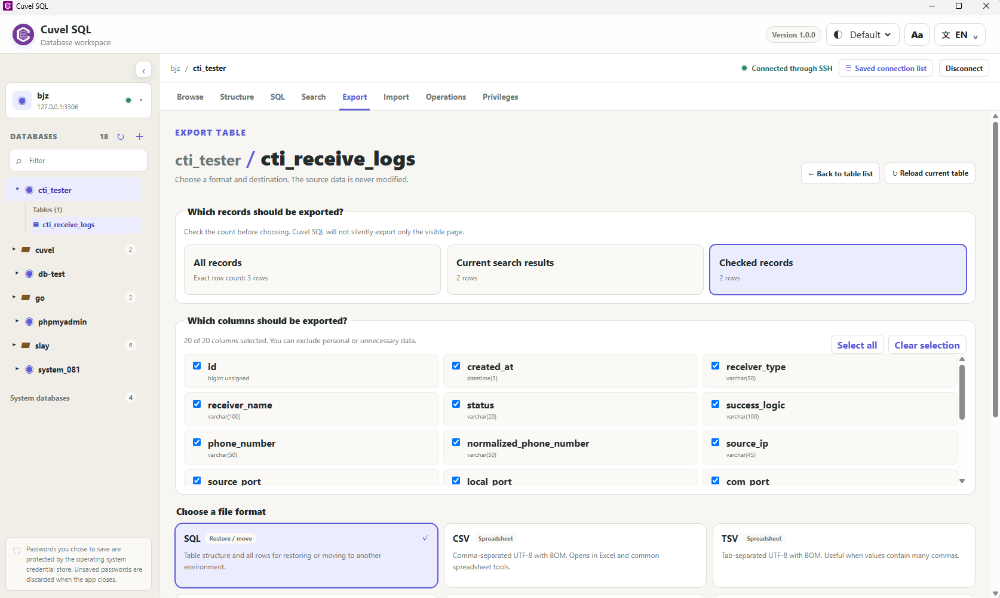
Pick a format for your purpose
Use CSV, TSV or Excel (XLSX) for spreadsheets; JSON or PHP for code; PDF for reading or printing. SQL supports moving structure and data, with options for structure and data, structure only or data only. Excluding columns may omit required values during restoration, so normally keep all columns for migration. Creating an SQL file does not itself verify that restoration will succeed.
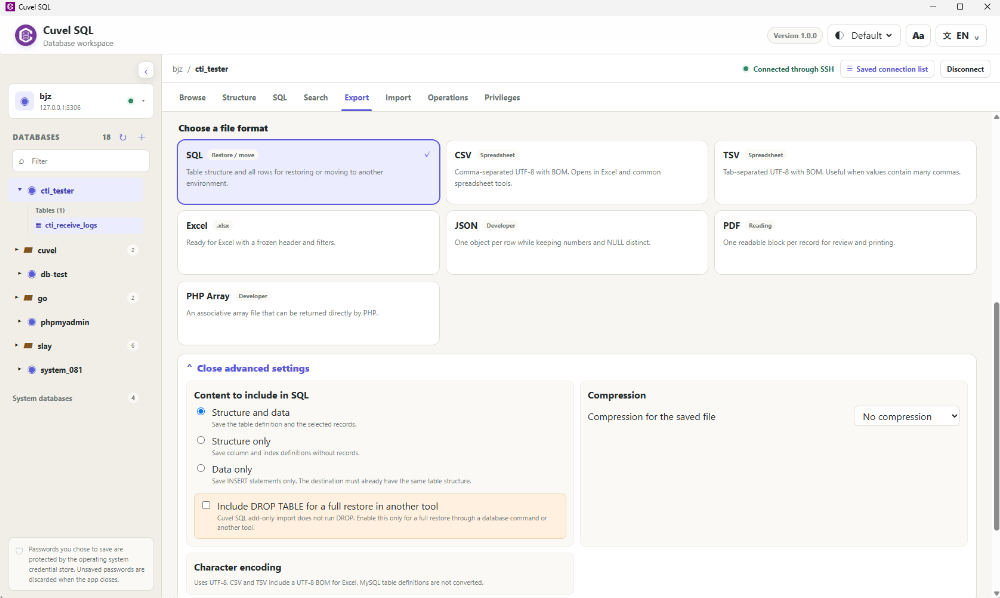
Check the saved file
Choose a destination, export, and check the completion message and file. Export reads data without changing the source records. Review row counts, columns and included information before sharing. If it fails, check the connection, SELECT permission, disk space and write permission. For connection setup, see Your first connection.
Your first connection →