
Identify the stage of the failure
Check whether the failure occurs before connecting or during an operation. Read the guidance and expand server error details when available. Note the error code and target database/schema and table. A UI reference identifies app guidance, not a database error number. Avoid immediately repeating the operation; use the matching checks below.
Timeout, connection refused or host not found
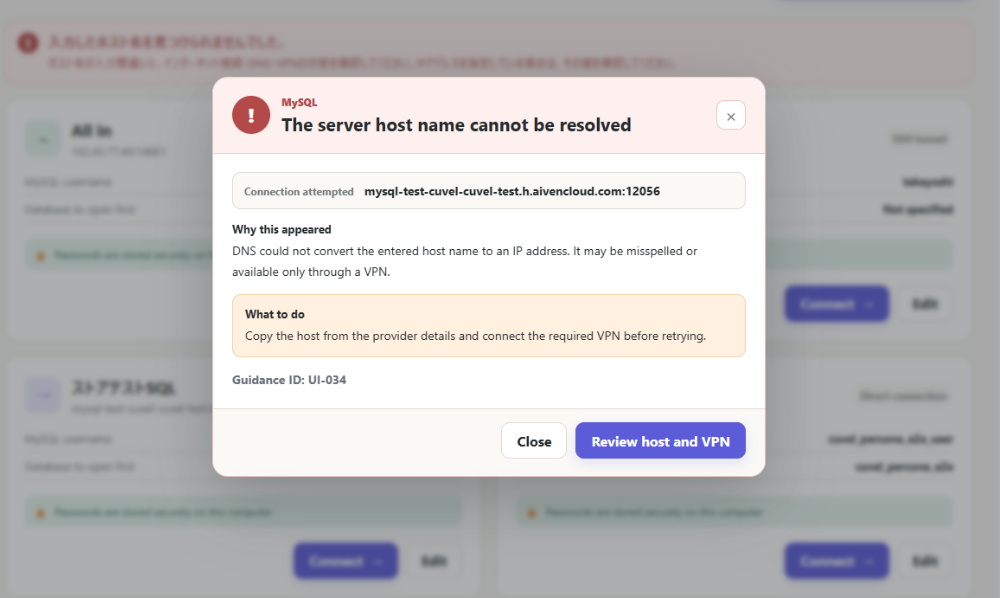
Compare the host and port with your service details. Check server availability, your network and any required VPN. Ask the administrator about firewalls and allowed source IPs. For SSH, check PC-to-SSH and SSH-to-database connectivity separately. As a database destination, 127.0.0.1 refers to your PC for direct connections and to the SSH server through a tunnel.
Username, password or private-key errors
Keep database and SSH credentials separate. Successful SSH authentication does not guarantee database authentication. Select the private key rather than its .pub file, using the correct Windows, WSL or manual path location. Its passphrase is separate from the SSH login password. If the database is not found, check its exact name; PostgreSQL needs a database name, not a schema name.
CA certificates, hostnames and SSH host keys
When your service supplies a CA, select the downloaded file in the CA field, not its URL. Check the official hostname, certificate expiry, PC clock and CA for certificate errors. Verify a first-time SSH host key against the administrator’s fingerprint. Investigate changes to previously used keys or certificates. Do not disable verification or delete saved keys merely to remove a warning.
Connected, but tables are missing or actions are denied
Select the intended database/schema and reload the list. Authentication and permissions are separate. Viewing, searching and exporting require SELECT; changes need UPDATE, additions INSERT and deletions DELETE, as applicable. Structure changes may require ALTER. Ask the administrator to check permissions for the specific target and action; broad administrator access is not required by default.
Cells cannot be edited or saved
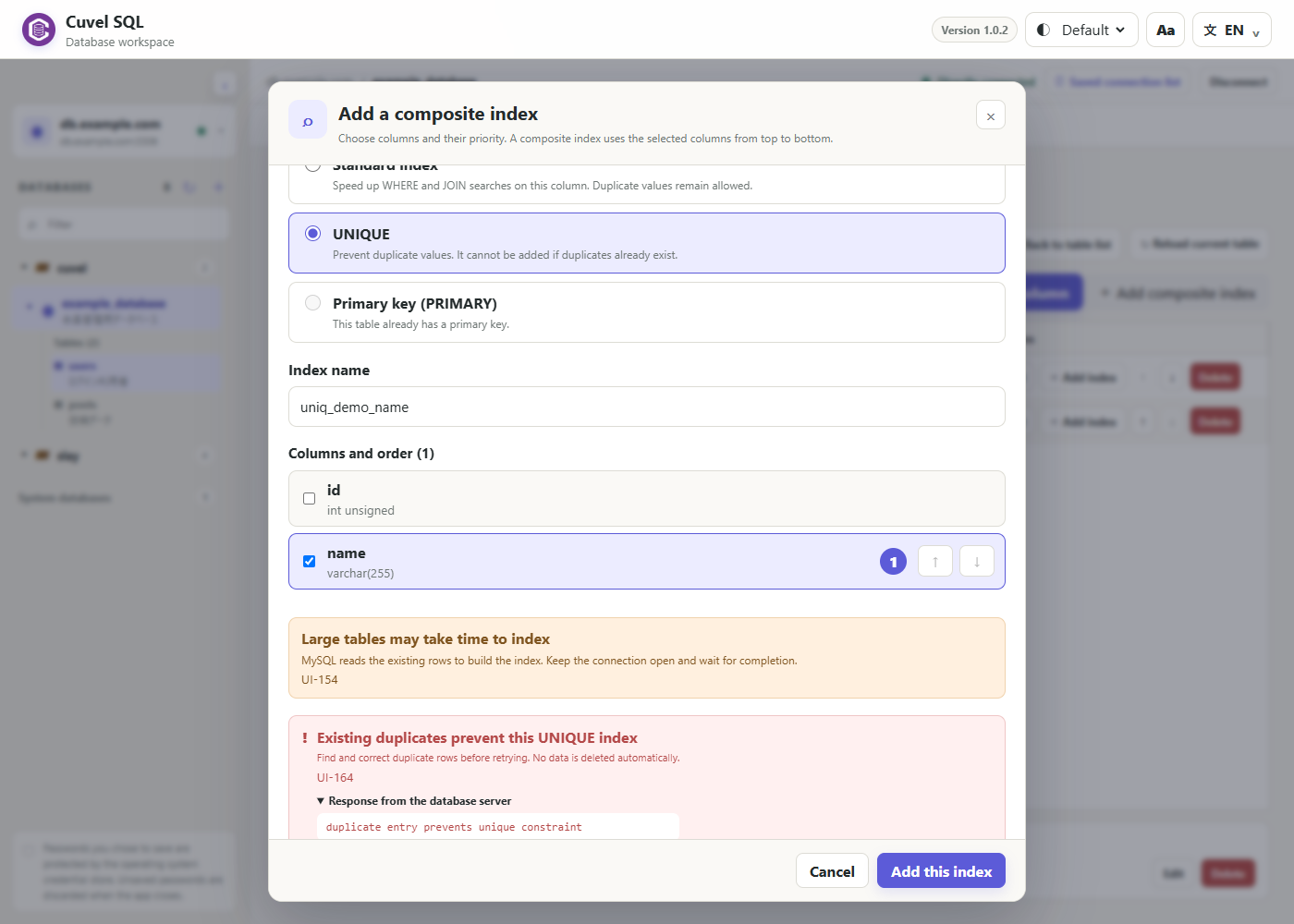
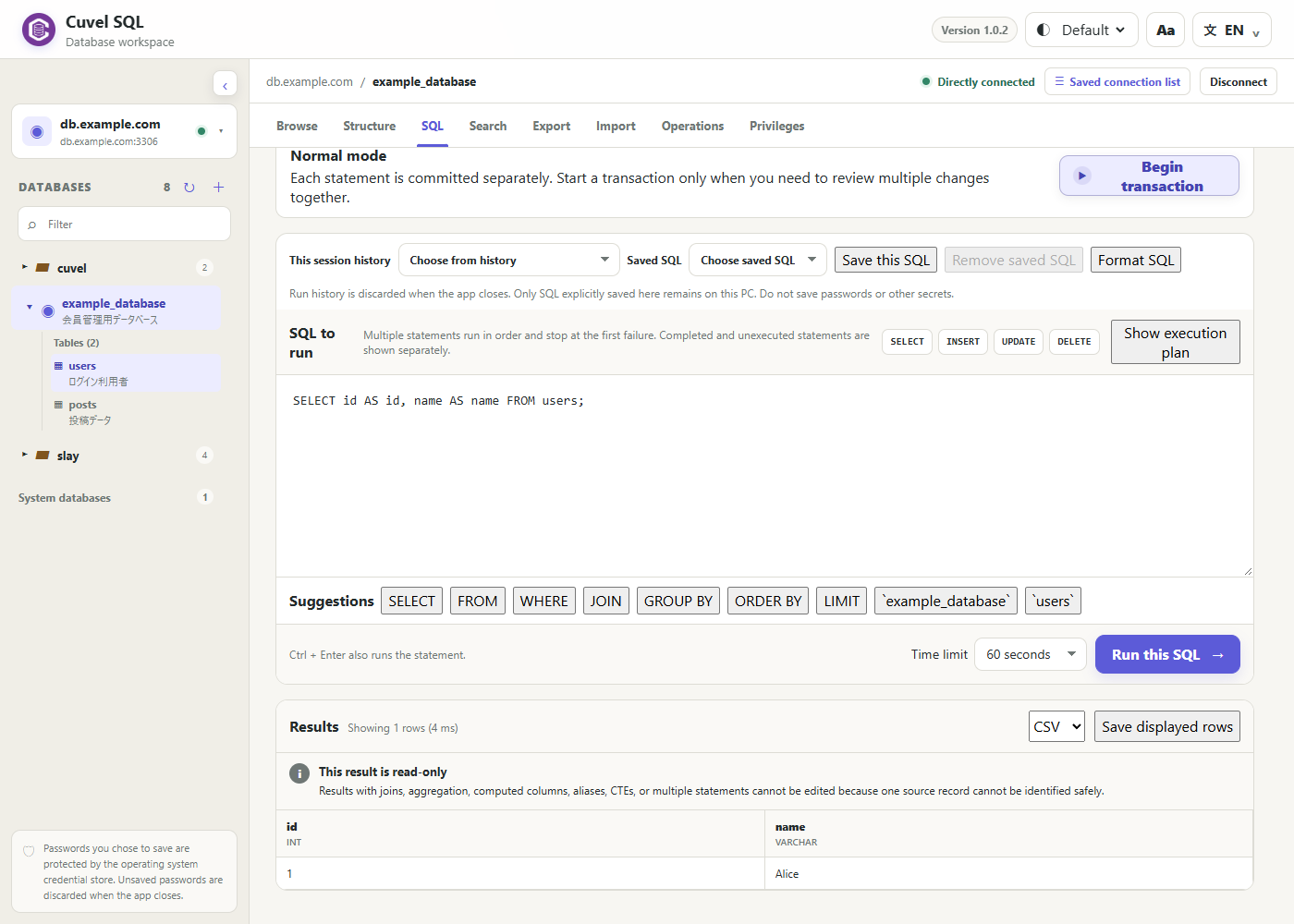
Tables without a primary key may not identify a row safely; SQL results with joins or aggregates can also be read-only. Generated columns, binary data and truncated values have inline editing restrictions. For save failures, check value format and length, NOT NULL, duplicate primary or UNIQUE keys, foreign keys and UPDATE permission. Adding a primary key changes the structure: review existing data and design first.
Check the current state before retrying
If communication stops during an update or deletion, do not assume nothing ran. Reconnect and reload the target; a multi-row deletion may be partially complete. For zero search results, check conditions, AND/OR and value types. For export failures, check SELECT permission, disk space and write access. If unresolved, report app version, OS, database product, connection route, steps and error details, removing passwords, private keys and personal information.
Your first connection →